Saturday, February 20, 2010
Thursday, February 11, 2010
Tuesday, February 9, 2010
Setting manual GPRS Nexian NX-G522 untuk beragam Operator
Hal pertama yang perlu diperhatikan untuk setting GPRS ini adalah rekan membuat sebuah akun Baru yang berisi data GPRS operator yang rekan gunakan, dan sebelum melakukan setting manual tersebut, rekan bisa mencoba setting OTA (otomatis) dengan mengirimkan SMS sesuai instruksi masing-masing operator.
Langkah-langkah:
Menu > Pengaturan > Layanan dan Internet > Data Account > GPRS > Pilih pada akun yang belum tersetting, misalnya account 1, lalu tekan “ubah” dan selanjutnya silahkan masukkan data-data yang diperlukan, berdasarkan data berikut ini:
MATRIX
Setting OTA:
Kirim SMS ke888 dengan pesan :
ACT[spasi]GPRS
MENTARI
Setting OTA via SMS ;
Kirim SMS ke3000 dengan pesan :
Ketik : GPRS[spasi] merk HP[spasi] tipe HP
Setting Manual :
GPRS
Profile Name : INDOSATGPRS
Homepage URL : http://wap.klub-mentari.com
IP Address : 10.19.19.19
Bearer : GPRS
User Name : indosat
Password : indosat
APN : indosatgprs
MMS
Profile Name : INDOSATGPRS
Homepage URL : http://mmsc.indosat.com
IP Address : 10.19.19.19:8080
Bearer : GPRS
User Name : indosat
Password : indosat
APN : indosatmms
IM3
Setting OTA via SMS ;
Kirim SMS ke3939 dengan pesan :
Ketik : GPRS[spasi] merk HP[spasi] tipe HP
Setting Manual :
GPRS
Connection name : M3-GPRS
Access point name : www.indosat-m3.net
User name : gprs
Password : im3
Authentication : Normal
Homepage : http://wap.indosat-m3.net
IP address : 010.019.019.019
Port : 9201 (standard), 8080 (proxy)
MMS
Connection name : M3-MMS
Access point name : indosatmms
User name : indosatmms
Password : indosatmms
Authentication : Normal
Homepage : http://mmsc.indosat-m3.net
IP address : 010.019.019.019
Port : 9201 (standard), 8080 (proxy)
TELKOMSEL
KARTU HALLO
Kirim SMS ke 6616 dengan pesan :
Ketik : GPRS
KARTU SIMPATI/KARTU AS
Kirim SMS ke 6616 dengan pesan :
Ketik : GPRS[spasi]angka dibelakang simcard Anda (Nomor ICCID/Integrated Circuit Card Identification)
Kemudian tunggu beberapa saat, Anda akan mendapat SMS konfirmasi bahwa aplikasi GPRS sedang diproses. Waktu yang dibutuhkan sekitar 48 jam. Setelah GPRS aktif, Anda akan mendapat notifikasi SMS lagi yang menyatakan GPRS sudah aktif.
Setting Manual :
GPRS
Profile Name : TSEL GPRS
APN : Telkomsel
User name : wap
Password : wap123
Authentication : Normal
Gateway IP address : 10.1.89.130
Homepage : http://wap.telkomsel.com
Data Bearer : GPRS
Proxy port number : 9201 atau 8000
MMS
Connection Name: tel-MMS
Data Bearer: GPRS
Access Point Name: mms
Username: wap
Prompt Password: No
Password: wap123
Authentication: Normal
Proxy address: 10.1.89.150
Homepage: http://mms.telkomsel.com/
Connection Security: Off
XL
Setting OTA via SMS ;
Ketik SMS dengan isi : GPRS[spasi][spasi] Kirim ke 9667
Ketik SMS dengan isi : MMS[spasi][spasi] Kirin ke 9667
Setting Manual :
GPRS
Connection Name: XL-GPRS
Data Bearer: GPRS
Access Point Name: www.xlgprs.net
Username: xlgprs
Prompt Password: No
Password: proxl
Authentication: Normal
Homepage: http://wap.lifeinhand.com
Connection Security: Off
Session Mode: Permanent
IP Address: Automatic
Proxy Server Address: 202.152.240.050
Proxy Port Number: 8080
MMS
Connection Name: XL-MMS
Data Bearer: GPRS
Access Point Name: www.xlmms.net
Username: xlgprs
Prompt Password: No
Password: proxl
Authentication: Normal
Homepage: http://mmc.xl.net.id/servlets/mms
Connection Security: Off
Session Mode: Permanent
IP Address: Automatic
Proxy Server Address: 202.152.240.050
Proxy Port Number: 8080
3 (THREE)
Setting Manual :
GPRS
Settings’ Name: 3-GPRS
Homepage : http://wap.three.co.id/
Proxies : Enable
Proxy address : 10.4.0.10
Port : 3128
GPRS access point : 3gprs
Authentication type : Normal
Login type : Automatic
Username : 3gprs
Password : 3gprs
MMS
Settings’ name : 3-MMS
Homepage : http://mms.hutch.co.id/
GPRS access point : 3mms
Authentication type : Normal
Username : 3mms
Password : 3mms
Allow adverts : No
KARTU AXIS
Parameter Umum GPRS
Connection Name : AXIS
Data Bearer : GPRS atau PS
Access Point Name (APN) : AXIS
Username : AXIS
Prompt Password : No
Password : 123456
Authentication : Normal
Gateway/Proxy IP Address : 10.8.3.8
Gateway/Proxy Port : 9201 atau 8080
Homepage : http://wap.axisworld.co.id
Connection Security : Off
Session Mode : Permanent
Parameter Umum MMS
Connection Name : AXISmms
Data Bearer : GPRS atau PS
Access Point Name (APN) : AXISmms
Username : AXIS
Prompt Password : No
Password : 123456
Authentication : Normal
Gateway/Proxy IP Address : 10.8.3.8
Gateway/Proxy Port : 9201 atau 8080
Homepage / MMS Server : http://mmsc.AXIS
Connection Security : Off
Session Mode : Permanent
Selanjutnya, setelah selesai membuat akun, rekan bisa setting Sim 1 dan Sim 2 untuk menggunakan akun tersebut.
Setting untuk WAP :
Menu > Pengaturan > Layanan dan Internet > WAP > SIM 2 > Pengaturan > Ubah Account > Sim 2 > pilih, misal “3-GPRS”
Setting YM :
Menu > Yahoo > Pilihan > Pengaturan GPRS > SIM 2 ( kartu kedua adalah kartu 3 yang telah kita buat/aktifkan akunnya)
Selamat mencoba dan sukses.
Monday, February 8, 2010
SETTING MANUAL EMAIL YAHOO, GMAIL, WLM/MSN, OVI MAIL Di HP Nokia
Y! & GmaiL :Contoh mau setting manual di E71, coba cara ini :
YAHOO! :
-Incoming POP3 server : pop.mail.yahoo.co.id (port 110) encryption : No encryption
-Outgoing SMTP server : smtp.mail.yahoo.co.id (port 25) encryption : No encryption
-Account Name/Login Name: nama ID Yahoo! (tanpa "@yahoo.co.id")
-Email address: alamat surat Yahoo! email (contoh., pengguna @yahoo.co.id)
-Password: sandi Surat Yahoo!
GMAIL :
Login ke account Gmail lo via PC/Laptop, setelah berhasil login klik "SETELAN" disudut kanan atas, kemudian klik lagi "PENERUSAN POP3/IMAP4" lo ikuti panduan yang ada dan terakhir klik "SIMPAN PERUBAHAN". Setelah itu setting pengaturan email diHP dengan :
Jenis koneksi : POP3 atau IMAP4
Incoming server : pop.gmail.com atau imap.gmail.com
Port : 995 (pop3) atau 993 (imap4)
Encryption : SSL
-Outgoing server : smtp.gmail.com
Port : 465
Encryption : SSL
-Username : ID Gmail (tanpa "@gmail.com")
-Password : sandi gmail
Pengaturan SMTP pilih otomatis atau isi manual
-outgoing username : ID Gmail (tanpa "@gmail.com")
-outgoing password : sandi gmail
Windows Live / MSN :
INCOMING e-mail:
Username: email @hotmail.com
Password: xxxxxxxxxxxx
Incoming mail server: pop3.live.com
Access point in use: operator yangg pake
Mailbox name: terserah mau namain apa
Mailbox type: POP3
Security ports SSL/TLS
Port 995
APOP secure login: off
OUTGOING e-mail:
My e-mail address: email @hotmail.com
Username: email @hotmail.com
Password: xxxxxxxxxxxx
Outgoing mail server: smtp.live.com
Access point in use: Mobile Internet
Security (ports): SSL/TLS
Port 24
atau
POP server: pop3.live.com (Port 995)
POP SSL required? Yes
User name: email msn
Password: pass email
SMTP server: smtp.live.com (Port 25)
Authentication required? Yes (sesuai dengan username dan password POP)
OVI MAIL :
Explore these step-by-step instructions to get started with Ovi Mail and learn to use some of its basic functions and options.
Getting started:
* A wireless data service plan with your wireless operator
* A supported Nokia device
Signing up:
Ovi Mail on the device does not require any software to be downloaded either. It works out of the box for a wide range of Nokia devices. Simply go to your Messaging folder and sign-up for a new email address with Ovi Mail.
Step-by-step instructions:
* Select "Messaging" from Menu
* Select Options, the "Add mailbox"
* Select "No" when asked "Do you have an e-mail address you want to use on your phone?"
* The email sign-up wizard will guide you through the remaining steps
* The final step will configure your phone for use with your Ovi Mail account
Setup Ovi Mail on your Nokia Series 60 (S60) Smart Phone
On a Nokia Series 60 device, you cannot create a new Ovi Mail account. If you do not have an Ovi Mail account yet, you can first go to http://mail.ovi.com on a computer to create an Ovi Mail account. Then you can configure your S60 device to access your Ovi Mail account by following the instructions below:
* Select Communications from Menu on your S60 device
* Select Messaging
* Select Options
* Select Settings
* Select Email
* Select Options
* Select New mailbox
* Enter your complete email address (username@ovi.com) and password to connect to your Ovi Mail account
If you are using a N-series device such as N95 or N96, the above steps may not work. In that case use the following manual steps:
* Select Messaging
* Select Options
* Select Settings
* Select Email
* Select Options
* Select New mailbox
* Enter your complete email address (username@ovi.com) and password. The device will say Email Provider not on the list – search, select OK
* Select IMAP
* Enter Incoming Mail Server as imap.mail.ovi.com
* Enter Outgoing Mail Server as smtp.mail.ovi.com
* Define Access Point (Pick AT&T Internet or TeliaSonera or your local Operator)
* Define Mailbox Name as Ovi
* Enter Security (ports) as SSL/TLS for both incoming and outgoing email settings. The default secure ports will work (993 for incoming and 465 for outgoing)
* Select Messaging
* Select Ovi
* Select Options
* Select Connect. The device may ask for your email address and password one more time, after that you are ready to start using Ovi Mail.
Pilih yg IMAP 4
Setting Ovi Mail
Incoming email:
User name: xxx@ovi.com
Password: *****
Incoming mail server: imap.mail.ovi.com
Mailbox type: IMAP 4
Security (ports): SSL/TLS
Port: Default
Outgoing email:
My email address: xxx@ovi.com
User name: xxx@ovi.com
Password: *****
Outgoing mail server: smtp.mail.ovi.com
Security (ports): SSL/TLS
Port: Default
Tips Agar HP Nokia Tak Lemot Lagi

Penyebabnya berfariasi, mulai dari manajemen file yang amburadul, banyaknya file yang tersimpan juga terlalu sering menginstall & menghapus beragam aplikasi, yang pasti semuanya berhubungan dengan bagian logic unit, apa saja itu ?
Logic Unit terdiri dari RAM (Random Acces Memory), ROM (Read Only Memory) sampai CPU ( Central Prosessing Unit). Sama halnya dengan komputer, kinerja HP tergantung dari ketiga komponen ini.
Penyakit lemot ini lebih sering dialami oleh HP-HP yg menggunakan sistem terbuka. Tetapi tidak sedikit HP-HP berplatform tertutup mengalami masalah yang sama.
Bagaimana cara mencegah dan mengatasi ?
Ada beberapa hal yang harus di lakukan, antara lain :
- Jika HP kamu memiliki slot memori eksternal, sebisa mungkin tidak menggunakan kapasitas memori yang terlalu besar. Ada kalanya kita membeli memori eksternal sampai batas maksimal walaupun penggunakaannya tidak sampai separuhnya. Celakanya lagi, memori yg besar itu hanya di gunakan untuk menampung file-file yg tidak begitu penting. Jadi sesuaikan dengan kebutuhan.
- Atur file di HP , masukkan file-file yang ada ke dalam folder yang dibuat sesuai dengan jenisnya. Misal, file music di folder "music", foto atau gambar di folder "gambar" dst.
- Bila sering menggunakan HP untuk internet, hapus secara berkala file cache dan cookie. Cookie merupakan data yg di buat oleh web server & di simpan di memori HP untuk kemudian di gunakan lagi sewaktu-waktu.
Contoh: bila kita berkunjung ke situs web dan kemudian melakukan login, beberapa hari kemudian kita kembali ke situs web tsb. dan ternyata masih dalam keadaan logged in, umumnya ini di sebabkan adanya file cookie yang disimpan dalam web browser atau HP kita. Sebetulnya file cache juga menguntungkan, sebab ketika sewaktu-waktu akan membuka halaman yang sama di kemudian hari dan selama cache nya ada dan di simpan oleh browser, maka data yang sama akan di baca lebih cepat, dan akan di load lebih cepat pula.
Sayangnya, file cache dan cookies di HP akan tersimpan di memori HP yg kapasitasnya terbatas. Sehingga lama kelamaan malah akan memberatkan kinerja HP.
Cara menghapusnya, aktifkan browser HP anda, lalu pilih menu Advance, lalu cari "clear cache" atau "delete cookies".
- Hapus file atau ubah waktu penyimpanan file log sesingkat mungkin, misalnya 1 hari. File log adalah data-data yang menyimpan catatan keluar masuknya telepon. Cara ini memang agak sedikit merugikan karena gak bisa melacak aktivitas komunikasi loe.
- Jika tidak di perlukan, nonaktifkan kode kunci pengaman di HP anda. Sebab fitur ini juga sedikit banyak memakan memori HP.
- Bagi pengguna HP symbian (Nokia 3650, 3660, 6600, 6630, 3230, 7610, Seri N, dan E) hilangkan kebiasaan buruk seperti menekan tombol telepon warna merah untuk keluar dari fitur yg sedang digunakan. Sebab fitur tsb. akan tetap aktif, coba tekan tombol menu agak lama baru terlihat menu fitur apa saja yang masih aktif. Nah jika sudah terlihat fitur apa saja yang masih aktif, untuk keluar dari fitur tadi tekan tombol "C".
- Tak ada salahnya jika me-restart (matikan dan hidupkan lagi) HP 2 atau 3 kali sehari. Tujuannya agar HP tetap fresh.
- Apabila Hp sudah terasa lemot, coba lepaskan kartu memori yang ada. Lalu hidupkan HP anda tanpa kartu tsb. Jika kinerjanya tidak terganggu, itu berarti kartu memori anda harus di format. tetapi anda hrs membackup data-data penting yang ada di kartu sebab semuanya akan terhapus. Untuk pengguna HP symbian, coba format dulu kartu memori, kemudian format memori HPnya lalu coba lagi format kartu memori lagi. Cara format memori HP bisa dengan menekan *#7370# (untuk symbian versi lama) dan atau dalam keadaan off tekan * Call 3 secara bersamaan lalu aktifkan HP.
- Sisakan ruang di kartu memori anda minimal 20 persen dari total kapasitas yang ada. Jika sudah penuh, pindahkan file-file tsb. di PC atau HP lain.
Tips-tips Merawat Baterai Nokia Anda
Kadang kita sering mengabaikan perawatan baterai pada ponsel kita,padahal benda yang satu ini komponen yang paling vital pada sebuah ponsel,berikut tips-tips merawat baterai ponsel agar tahan lama:- Matikan ponsel. Sebaiknya matikan ponsel jika berada di sebuah tempat yang kemungkinan untuk mendapatkan sinyalnya sulit. Kalau ponsel terus diaktifkan, sementara ponsel terus menerus mencari sinyal, hal ini akan membuat energi baterai terkuras.
- Matikan fitur suara yang tidak penting, jangan biarkan aktif sepanjang hari.
- Jangan aktifkan ringtone dan fitur getar sekaligus karena cukup menguras energi baterai, aktifkan salah satunya saja. Saat berada di bioskop ada baiknya aktifkan fitur getarnya saja, namun saat berada di tempat publik seperti mall, stasiun dan bandara, mengaktifkan ringtone bisa menjadi pilihan yang lebih baik.
- Kurangi brightness layar ponsel Anda hingga 50 atau sampai 10% jika mau, agar energi baterai yang terpakai lebih hemat.
- Matikan Bluetooth jika tak digunakan. Untuk diketahui saja, Bluetooth yang aktif akan menguras energi baterai ponsel lebih cepat.
- Sama halnya seperti Bluetooth, matikan juga fitur infrared jika tak digunakan.
- Matikan aplikasi-aplikasi lain yang tidak digunakan.
- Letakkan ponsel di tempat yang temperaturnya normal sehingga tidak terjadi kerusakan akibat suhu yang terlalu tinggi atau rendah. Misalnya, jangan letakkan ponsel di dalam mobil yang terjemur matahari, di atas laptop atau konsol game yang suhunya panas.
- Segera cabut charger dari ponsel jika baterai ponsel sudah penuh.
- Charge-lah baterai sampai penuh dan segera isi ulang baterai Anda jika memang sudah habis.
- Kalau ingin baterai tahan lama, jangan sering-sering bermain game lewat ponsel, mendengarkan mp3, melakukan panggilan video (video call), mengedit foto ataupun browsing. Semua aktivitas tersebut hanya akan mempercepat baterai loe habis.
- Atur settingan backlight, jangan biarkan durasi nyalanya terlalu lama, cukup 5 sampai 15 detik saja.
Cara setting modem internet untuk HP Nokia Melalu Nokia PCsuite
berikut tutorialnya…:
1.instal dulu Nokia pc suite loe di pc/komputer/laptop/netbook.
2.gunakan kabel data usb sebagai media perantara (modus PCSuite)
3.buka pc suite yang sudah kamu instal
4.pilih connect to internet (one touch access). (lihat gambar)

5.kemudian Pilih Setting > Next > Configure Manually (lihat gambar)

Masukkan data-data berikut (contoh operator indosat) :
Operator GSM : INDOSAT
Access Point : indosatgprs
Username : indosat
Password : indosat

*tanyakan Operator yang berangkutan
NB: pada kolom perintah tambahan boleh di kosongkan
6. finish…
Sekarang kamu sudah bisa internetan sendiri di rumah.
Selamat mencoba !
Cara Backup HP Nokia Dengan Software Nokia PC Suite
- Download Software Nokia PC Suite di (http://europe.nokia.com/get-support-and-software/download-software/pc-suites/compatibility-and-download) dan Install di komputer kamu.
- Jalankan program tersebut, lalu sambungkan handphone dengan kabel data/ bluetooth ke komputer.
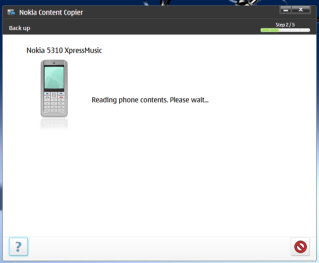
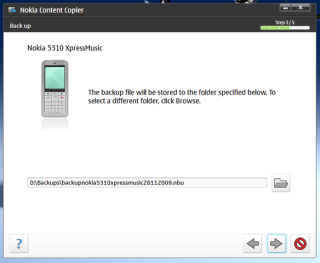
- Klik ikon Backup, sehingga muncul window seperti gambar dibawah:

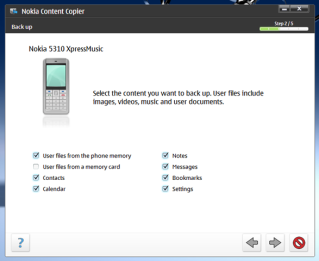
- Tunggu beberapa detik sampai muncul window pilihan backup data seperti gambar berikut:

- Pilih Data apa saja yang ingin dibackup lalu tekan tombol panah kanan.
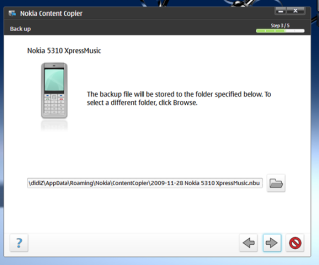
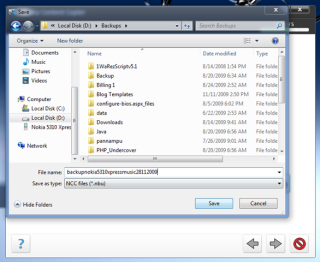
- Pilih dimana file backup data akan simpan.


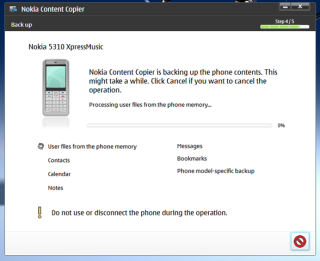
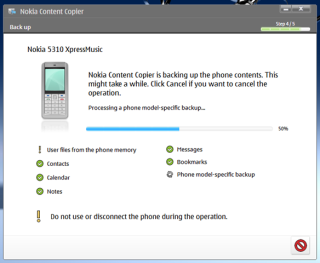
- Setelah itu, tekan tombol panah kanan lagi. Tunggu sampai proses backup 100%


Selamat mencoba !
Tips Dan Trick Untuk Nokia E Series
_
_
_
_
_
_
_
_
_
_
_THE NEW Nokia Eseries Nokia E72

- * # 06 # memeriksa IMEI.
- * # 0000 # Untuk memeriksa versi firmware dan tanggal.
- * # 92702689 # * # war0anty # Untuk memeriksa IMEI. Tanggal ketika dibeli, dan tanggal ketika diperbaiki.
- * 4720 # (* hra0 #) Untuk mengaktifkan Half Rate.
- # 4720 # (# hra0 #) Untuk menonaktifkan Half Rate.
- * 3370 # (* efr0 #) Untuk mengaktifkan Enhanced Full Rate.
- # 3370 # (# efr0 #) Untuk menonaktifkan Enhanced Full Rate.
- * # 746085685 # (* # sim0clock #) Untuk memeriksa SIM clock status.
- * # 7220 # (* # pca0 #) Untuk mengaktifkan GPRS dan Packet Common Control Channel (PCCCH) mendukung.
- * # 7230 # (* # pcd0 #) Untuk menonaktifkan GPRS dan Packet Common control channel (PCCCH) mendukung.
- * # 7760 # (* # ssn0 #) Untuk memeriksa nomor seri manufaktur.
- * # 2820 # (* # bta0 #) Untuk memeriksa alamat MAC Bluetooth.
- * # 7370925538 # (* # res0wallet #)
Hard Reset
- Cara Lama: * # 7370 # atau "Original Pengaturan" dialog
- Cara baru: tekan terus (call) lalu angka 3 ,dan * sambil menyalakan tombol power
- Kode kunci: 12345
- Menahan # akan beralih ke profil modus Silent / diam.
- Blue Function Key + Ctrl mengaktifkan Bluetooth.
- Blue Function Key + Chr mengaktifkan InfraRed.
- Ctrl + C Copy
- Ctrl + X Cut
- Ctrl + V Paste
- Ctrl + Joystick Down Page Down berfungsi sebagai (pergi ke halaman berikutnya ke bawah)
- Ctrl + Joystick Up Page Up berfungsi sebagai (pergi ke halaman berikutnya atas)
- Shift + Joystick Kiri atau Kanan menyoroti satu huruf pada satu waktu.
- Shift + Ctrl + Joystick Kiri atau Kanan menyoroti satu kata pada suatu waktu.
- Ctrl + Joystick Kiri atau Kanan menggerakkan kursor dari kata ke kata.
- * # 2820 # Menampilkan alamat bluetooth
- * # 62209526 # WLAN adapter menampilkan alamat MAC
- * # 92702689 # Telepon menampilkan timer masa pakai
STICKY FUNCTION KEY – A quick double press on the bottom left ‘function’
key locks it. This is helpful in situations when you need to press a
combination of keys or in applications like Gmail which can be controlled via
the keypad.
GENERAL STANDBY
- - SPACEkey to turn on/off light
- - GrennKey to Switch Between Running Appz
- - To get to a symbol or number hold down its key.
- - Shift + Backspace deletes letters after the cursor, thus immitating the behavior of the ‘Delete’ key on the computer.
- - Hold * to activate/deactivate Bluetooth.
- - Hold # to toggle General / Silent mode.
- - Hold 0 to go to the web browser.
- - Left Soft Key then Fn ( or * ) locks the keypad.
- - Hold End/Red to disconnect all data connections. (This is erroneous turns off your phone).
- - Hold Left Soft Key to read out new text messages.
- - Hold Space Bar to turn on flash light.
- - Hold Home button to see a list of open applications.
- - Hold keys 1 to 9 for speed dial.
- - *#7780# to soft Reset.
- - *#7370# to hard Reset.
- - Type contact name to get a list of matching contacts
- - A B C D
- E F G H
- I J K L
- To open A press Fn + 1 , Fn + 2 for B , Fn + 3 for C , Fn + * for D , Fn + 4 for E , Fn + 5 for F and so on.
- - Ctrl + C to copy.
- - Ctrl + V to paste.
- - Shift + Left ( or Right ) to select text.
- - Hold Chr + Vowels ( or n ) for accented characters like á or ñ..
- Green Call to send the image.
- Fn + * or Fn + Spacebar for full screen.
- Fn + 7 to zoom in. Press twice for the full screen size.
- Fn + 4 to scroll left while in the zoomed image.
- Fn + 5 to zoom in.
- Fn + 3 to rotate right.
- Fn + 2 to scroll up while in the zoomed image.
- Fn + 1 to rotate left.
- Fn + 0 to zoom out.
TEXT MESSAGES – When in the standby mode, hold down left soft key to read out new text messages.
MAIL/MESSAGING
- Shift + Return or Ctrl + Navkey to mark/unmark a single message.
- Shift + Down or Ctrl + Down to mark multiple items.
- Fn + Spacebar in new message body to access input (predictive text, etc.) options.
- Ctrl + Spacebar in new message body to turn on/off predictive text.
- Ctrl + Navkey to move cursor one word at a time when composing message.
- Backspace to delete message(s).
- Green button to send message immediately.
- Hold down the number button for a while to Input Number
MAPS
- Shift to zoom in.
- Backspace to zoom out.
- Space to go to the current position.
REAL PLAYER
- Fn + 2 for full screen.
- Fn + Right for fast forward.
- Fn + Left for rewind.
WEB
- 1 for bookmarks.
- 2 to find something on a page.
- 3 to return to the previous page.
- 5 to tab open windows.
- * to zoom in.
- # to zoom out.
- 8 for page overview.
- 9 to go to a different web page.
- 0 to got to the homepage.
- Hit the Backspace key to close the current window.
Tips n trick E71
SHORTCUT
1. Shortcut buat nyalain Bluetooth: Pencet U yang lama
2. Shortcut buat Silent / General mode: Pencet J yang lama
3. Shortcut buat WebBrowser: Pencet M yang lama
4. Tekan O yang lama berubah jadi (
5. Tekan P yang lama berubah jadi )
6. Tekan L yang lama berubah jadi "
7. Tekan K yang lama berubah jadi -
8. Tekan , yang lama berubah jadi `
9. Tekan . yang lama berubah jadi : <-- aneh
10. Tekan ' yang lama berubah jadi & <-- aneh juga
11. Tekan ? yang lama berubah jadi ! <-- seperti shift
12. Tekan @ yang lama berubah jadi / <-- sama spt shift juga
13. Pas pake camera, tekan T untuk autofocus (jadi ijo)
Trick mau copy paste
blok dulu yg mau di copy/cut pake shift (sebelahnya tombol kiri paling bawah untuk ngerubah huruf jadi angka), trus pencet tombol kiri paling bawah, trus pencet tombol chr/ctrl (nanti akan keluar tanda ctrl disebelah gambar batere), baru pencet c(untuk copy) x(untuk cut) v(untuk paste). gitu brooo..
tambahan :
press these button bellow for 1 second di home screen and u will get :
- u/* --> bluetooth on/of
- j/# --> change profile silent/general
- m/0 --> nyalain internet browser
- r/1 --> voicemail box number entry
- t --> 2
- y --> 3
- f --> 4
- g --> 5
- h --> 6
- v --> 7
- b --> 8
- n --> 9
- o --> (
- p --> )
- L --> "
- @ --> /
- ' --> ;
- ? --> !
- . --> :
- menu (gbr rumah) --> program manager
- calendar --> new calendar entry
- mail (gbr amplop) --> new email
- quick access kiri --> dibacain emailnya (mirip air secretary)
- quick access kanan --> voice recognition